
Docker Ignores Your UFW Rules. Here's How to Check Your Own Server

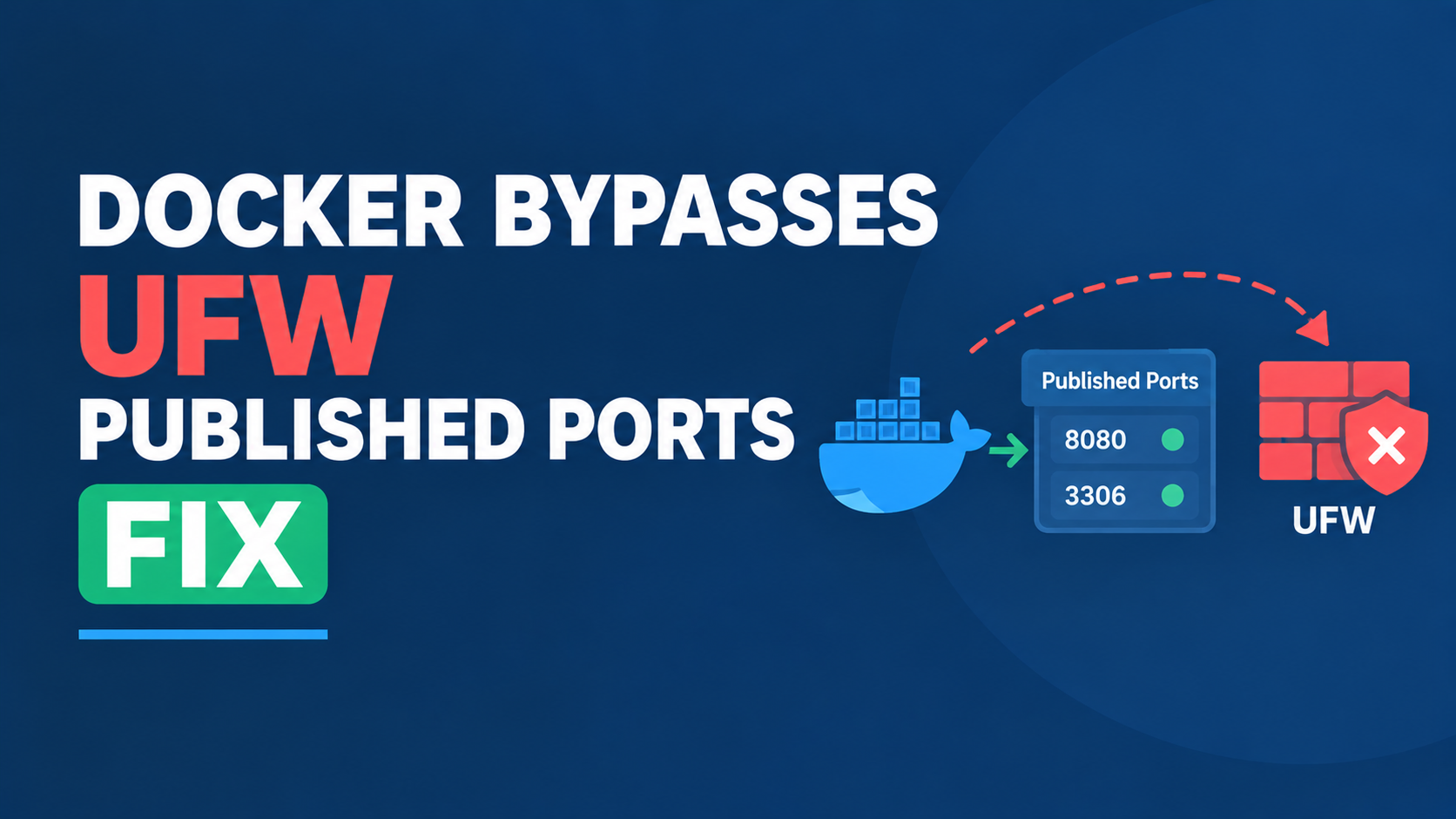
I want to correct something about how two of our own guides fit together. Our UFW guide tells you to turn on a firewall. Our Docker and Caddy guide tells you to run your apps in containers. Both are good advice. But if you follow both and stop there, your firewall may not be protecting your containers at all.
Here is what is going on, how to check your own server in two minutes, and how to fix it.
Docker does not ask UFW for permission
UFW is a friendly front end for the Linux firewall. It manages the rules for traffic that arrives at the server itself. Docker works differently. When you publish a port, Docker writes its own firewall rules directly. It does not go through UFW.
That matters because of the path the traffic takes. A packet headed for a published container port gets redirected before UFW's rules ever see it. It is then forwarded straight into the container. As a result, a rule like this does nothing for that port:
sudo ufw deny 8080You can run that command, see "Rule added," and still have port 8080 open to the whole internet. UFW is not broken. It just never gets a say. Docker's own documentation describes this behavior and the chain it reserves for your own rules.
Check your own server first
Start by listing what Docker is publishing:
docker ps --format "table {{.Names}}\t{{.Ports}}"Look at the Ports column. If you see 0.0.0.0:8080->80/tcp or :::8080->80/tcp, that port is listening on every network interface. If you see 127.0.0.1:8080->80/tcp, it is only reachable from the server itself.
Next, test from outside. Do this from your laptop or another machine, not from the server:
nc -zv your-server-ip 8080If it says the connection succeeded, the port is open, no matter what ufw status says. I always trust this outside test over the firewall's own report.
Fix one: do not publish the port at all
This is the best fix, and it is the pattern we already use. Your app does not need a published port if Caddy talks to it over the Docker network. In your compose file, give the app no ports section:
services:
  myapp:
    image: your-app-image
    networks:
      - caddy_net

  caddy:
    image: caddy:latest
    ports:
      - "80:80"
      - "443:443"
    networks:
      - caddy_net
Caddy then reaches the app by name, with reverse_proxy myapp:3000. Only ports 80 and 443 are public, and those are the two you want public anyway. If you hit a 502 after changing this, our Caddy 502 troubleshooting guide walks through the usual causes.
Fix two: bind to the loopback address
Sometimes you do want a published port, for example to reach an admin tool from the server itself. In that case, bind it to localhost:
ports:
  - "127.0.0.1:8080:80"
Now the port only answers on the server. You can still reach it through an SSH tunnel when you need it. This is the simplest fix when you need a published port, and it is what I reach for first. There are a few unusual network setups where loopback binding is not the whole story, so it is worth skimming the Docker documentation linked above if your server sits on a shared network segment.
Fix three: filter in the DOCKER-USER chain
If you really must publish a port to the world but want to limit who can reach it, use the chain Docker leaves open for you. It is called DOCKER-USER. Docker checks it before its own rules. For example, to allow one trusted address and drop everyone else on the main network interface:
sudo iptables -I DOCKER-USER -i eth0 -j DROP
sudo iptables -I DOCKER-USER -i eth0 -s 203.0.113.42 -j ACCEPT
Replace eth0 with your real interface name and the sample address with your own. Two cautions apply here. First, these rules do not survive a reboot unless you save them. Second, if your Docker network has IPv6 turned on, repeat the rules with ip6tables, because the same bypass exists there.
If you would rather not manage this by hand, the community project ufw-docker wires UFW into that chain for you. I would still read what it changes before running it on a production server.
Confirm the fix worked
Run the same outside test again:
nc -zv your-server-ip 8080This time it should time out or be refused. Then run docker ps once more and confirm that only the ports you meant to expose still show 0.0.0.0. That second check takes ten seconds, and it is worth repeating after every new service you add.
The lesson I keep coming back to
A firewall report tells you what the firewall believes. It does not tell you what the internet can reach. So whenever I harden a server, I finish by testing from the outside. It is the only check that cannot lie to you.
I checked the firewall behavior described here against Docker's official documentation and several independent guides as of October 2026.
Comments 0
Be the first to comment.
Leave a comment