


"No space left on device" rarely arrives on its own. You usually meet it as something else: MySQL refusing to start, WordPress failing to upload an image, apt stopping halfway through an upgrade, or a Docker build dying with an error that mentions /var/lib/docker. On a small VPS with a 20–80 GB disk, a few culprits account for almost every case. This guide finds which one it is, frees space safely, and then stops it happening again.
Step 1: confirm what is actually full
df -h
df -i
The first command shows space, the second shows inodes (the number of files a filesystem can hold). Look at the Use% column for / and any other mount.
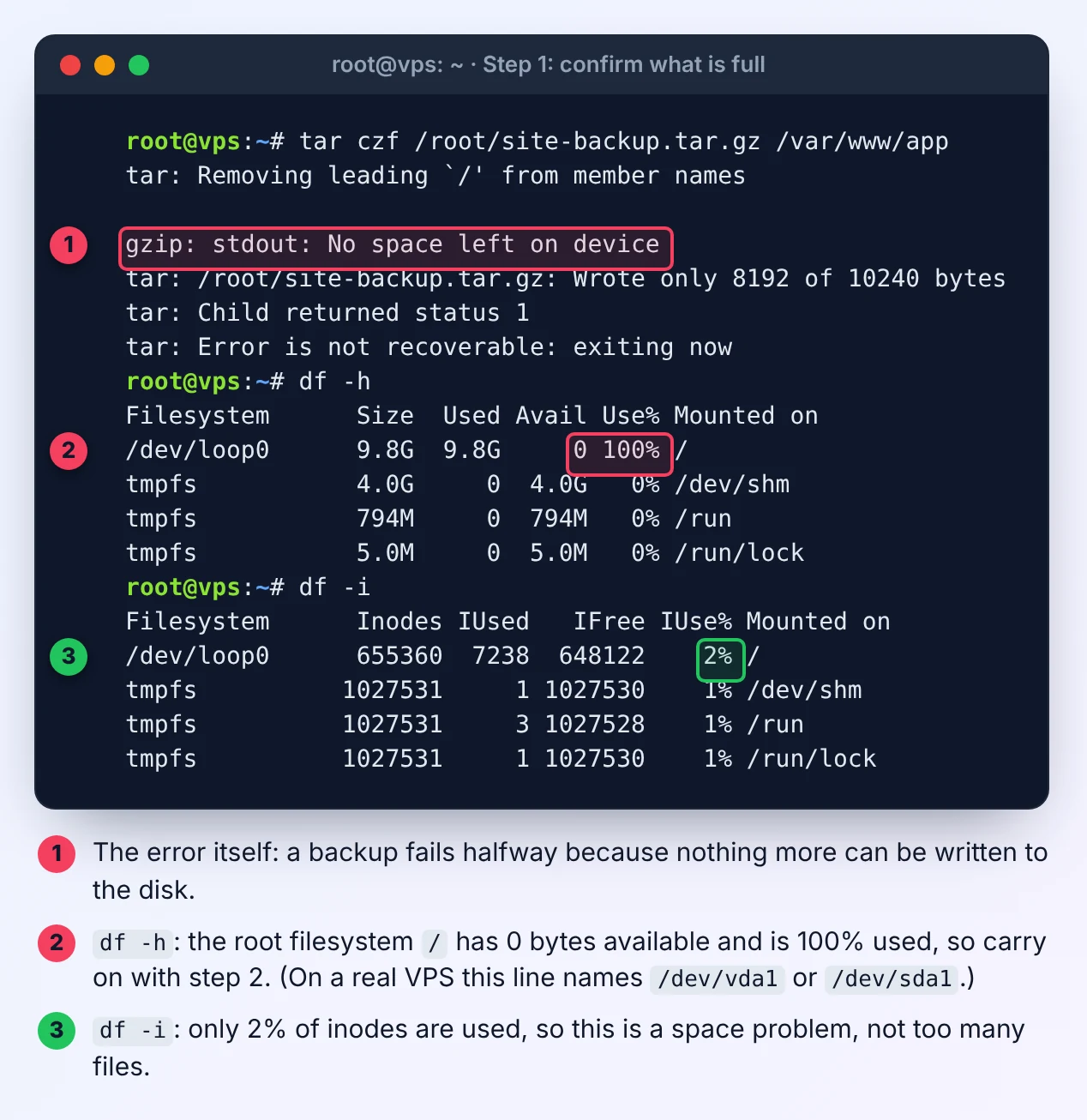
- Space at or near 100%: carry on with step 2.
- Space fine but
IUse%at 100%: you have run out of inodes, not bytes. Something has created millions of tiny files. Jump to the inodes section. /tmpfull but/fine: on Ubuntu 26.04,/tmpis a tmpfs that lives in RAM and has its own small size limit. Something is writing large temporary files; clear them or point that program at/var/tmp.
Step 2: find the big directories
Start from the top and work down, staying on one filesystem so you don't wander into /proc:
sudo du -xh --max-depth=1 / 2>/dev/null | sort -h | tail -15Then repeat on whichever directory is largest, for example sudo du -xh --max-depth=1 /var | sort -h | tail. If you prefer something interactive, sudo apt install ncdu and run sudo ncdu -x /. But on a completely full disk, apt may not be able to install anything until you free a little space first.
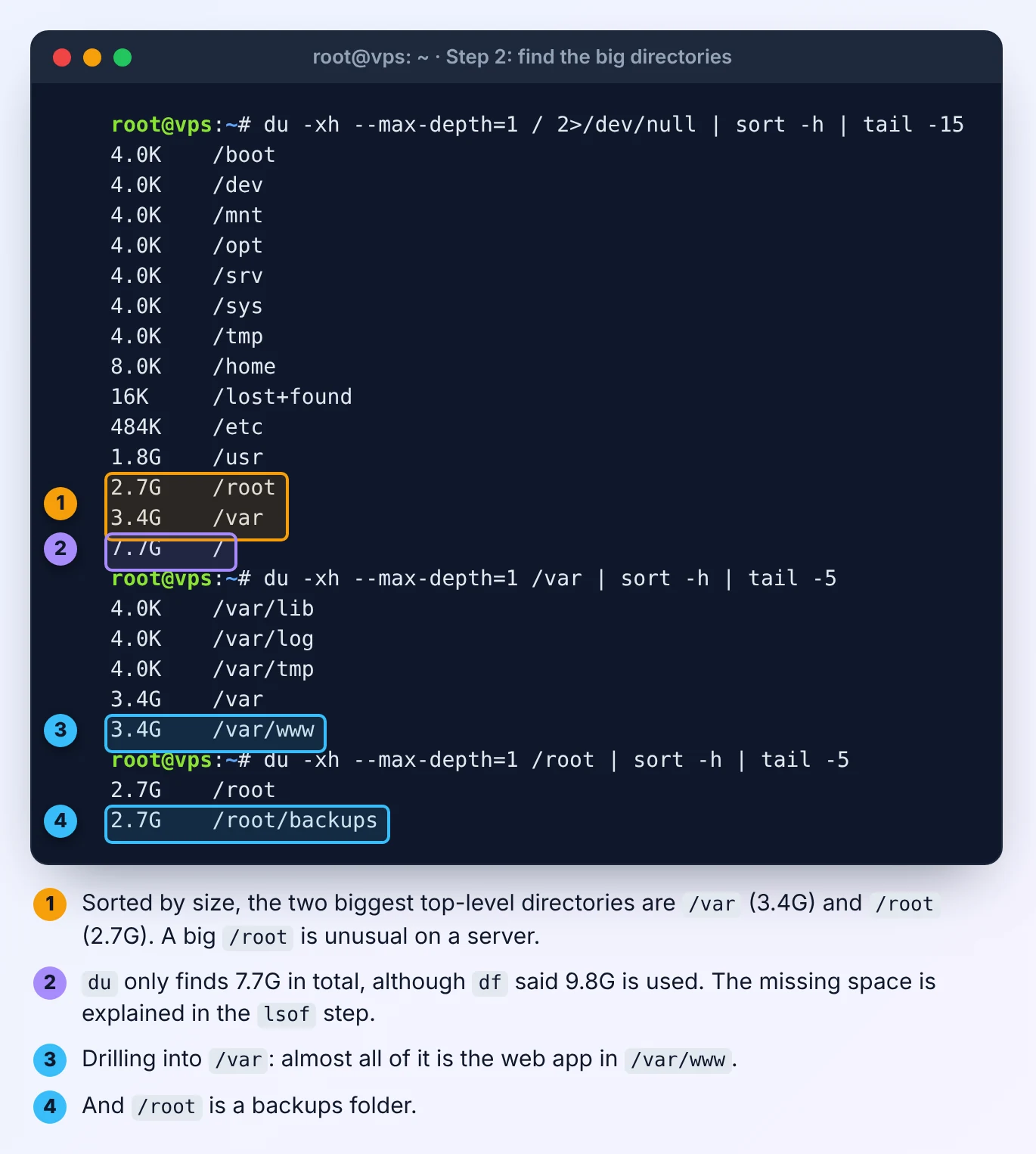
On a typical VPS, the answer is almost always under /var. Here are the usual suspects, in the order I check them.
Culprit 1: Docker images, build cache and container logs
docker system dfThis shows space used by images, containers, volumes and build cache, and how much of each is reclaimable. Old images pile up quickly if you deploy by pulling new tags, and build cache grows with every docker build.
The safe clean-up removes stopped containers, unused networks, dangling images and build cache:
docker system pruneTo also remove every image not used by a running container, add -a. That is usually fine on a server that pulls its images from a registry, but slower to redeploy afterwards. Do not add --volumes unless you are certain: unused volumes can include the database volume of a stack you have stopped temporarily.
The other Docker culprit hides inside containers: their logs. By default Docker keeps every line a container writes to stdout, forever, in a JSON file:
sudo sh -c 'du -h /var/lib/docker/containers/*/*-json.log' | sort -h | tailA chatty app can produce gigabytes. Emptying a log file in place is safe while the container runs:
sudo truncate -s 0 /var/lib/docker/containers/CONTAINER_ID/CONTAINER_ID-json.logThen fix it permanently in /etc/docker/daemon.json:
{
  "log-driver": "json-file",
  "log-opts": { "max-size": "10m", "max-file": "3" }
}
Restart Docker with sudo systemctl restart docker. The limit applies to containers created after the change, so recreate yours with docker compose up -d --force-recreate. If you run several apps behind Caddy, our multi-app Docker guide shows where these settings fit.
Culprit 2: the systemd journal
journalctl --disk-usageThe journal caps itself at a percentage of the filesystem, but on a small disk that can still be several gigabytes. Trim it now:
sudo journalctl --vacuum-size=200MThen set a permanent limit with a drop-in file:
sudo mkdir -p /etc/systemd/journald.conf.d
printf '[Journal]\nSystemMaxUse=200M\n' | sudo tee /etc/systemd/journald.conf.d/size.conf
sudo systemctl restart systemd-journald
Culprit 3: application logs and old log files
sudo du -sh /var/log/* | sort -h | tailCheck the web server, PHP-FPM and MySQL logs, plus your app's own logs. Laravel's storage/logs/laravel.log is a classic: with the default single channel it grows forever. Switch to LOG_CHANNEL=daily and set LOG_DAILY_DAYS=14 so Laravel deletes old files itself. WordPress sites with WP_DEBUG_LOG left on in production grow wp-content/debug.log the same way.
For anything else that writes its own log files, add a logrotate rule in /etc/logrotate.d/.
Culprit 4: backups stored on the same disk
A nightly database dump that is never deleted fills a disk at a steady, predictable rate, and it gives you no protection if the server itself dies. Look in your backup script's output folder, and in /root and home directories for *.sql, *.sql.gz and *.tar.gz files:
sudo find / -xdev -type f -size +500M -exec ls -lh {} + 2>/dev/null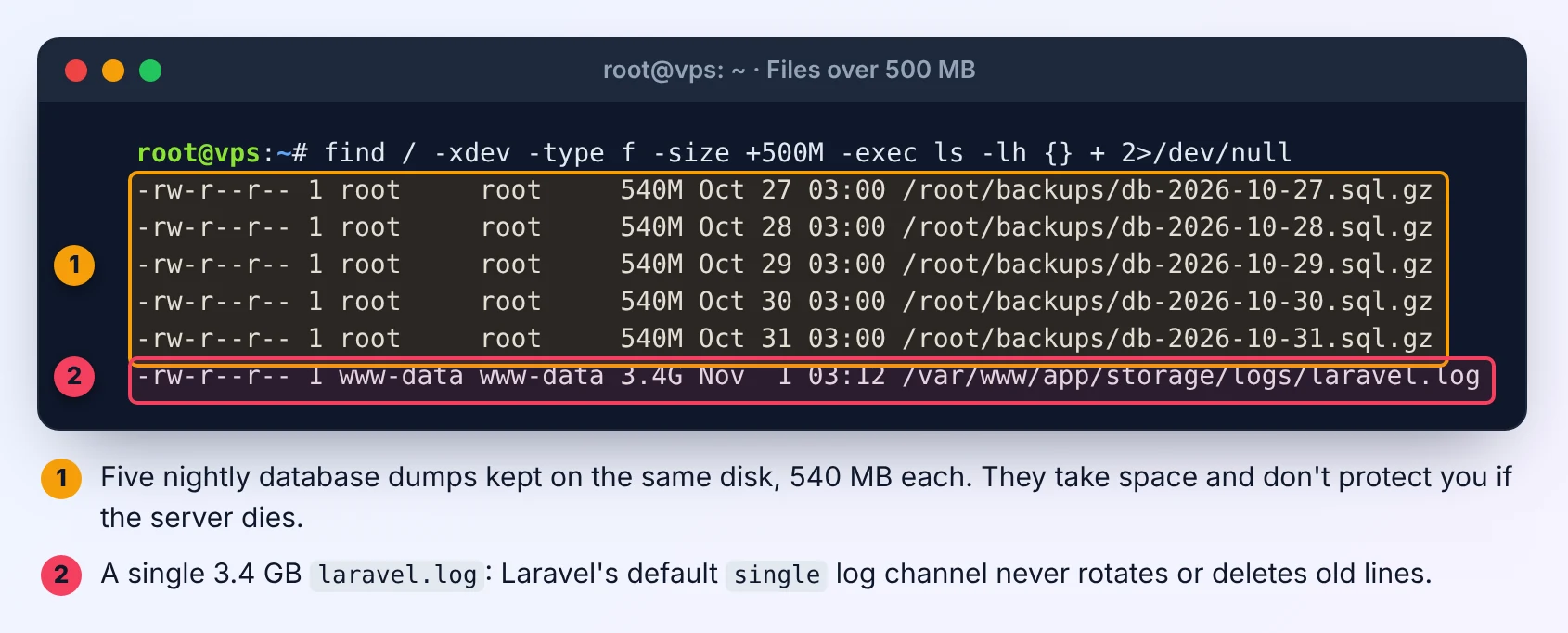
Keep a few local copies at most, and send the rest off the server. Our guide to automatic MySQL backups to Cloudflare R2 includes a retention rule, and this one makes sure you notice when a backup stops working, which a full disk is very good at causing.
Culprit 5: apt cache and old kernels
sudo apt clean
sudo apt autoremove --purge
This is rarely more than a few hundred megabytes, but on a disk at 100% it is often enough to get MySQL or apt running again while you deal with the real cause.
When df says full but du can't find it
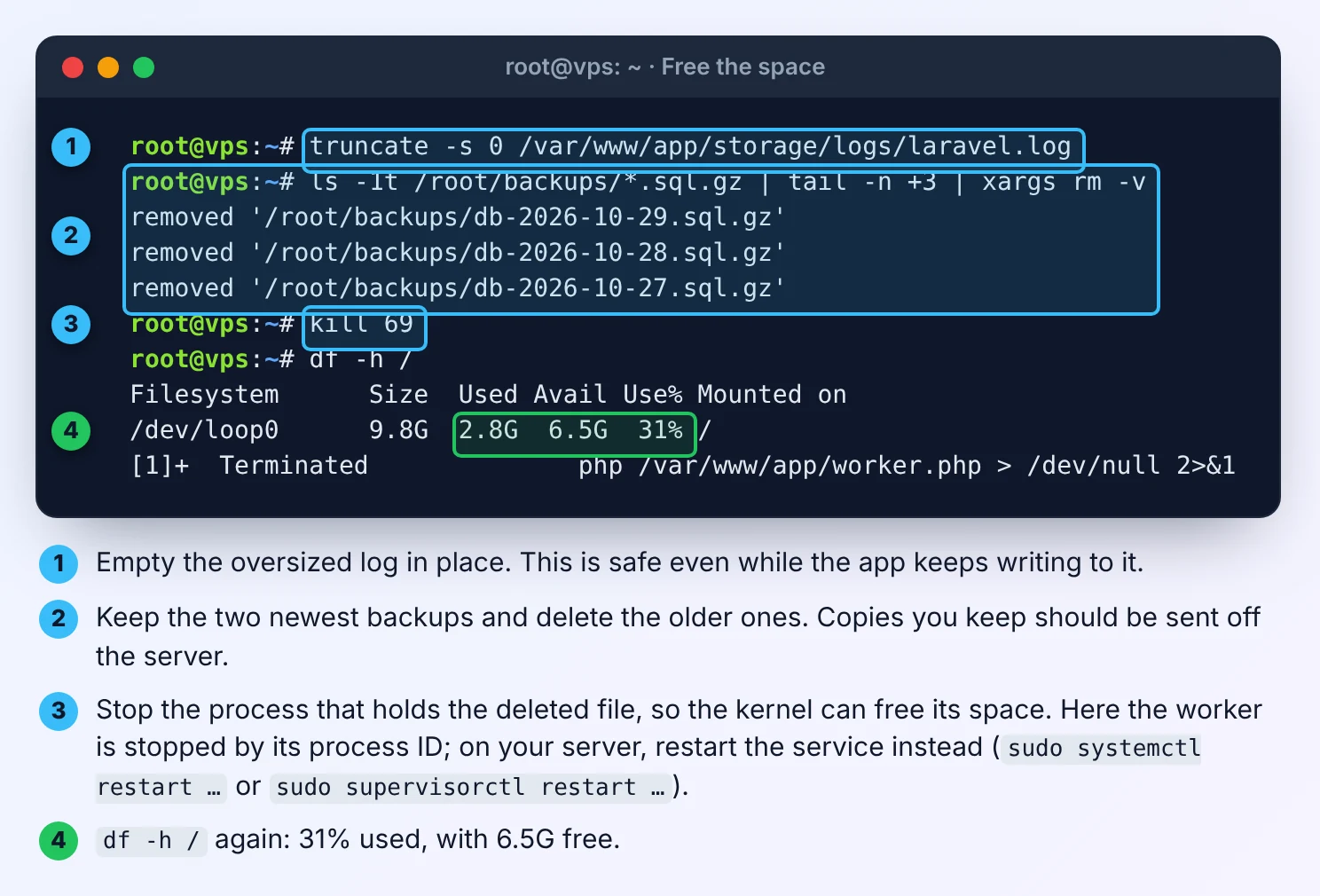
If the numbers don't add up, a process is probably still holding a file that has been deleted. The space is not freed until that process closes it. This happens when someone runs rm on a large log file that a service still has open.
sudo lsof +L1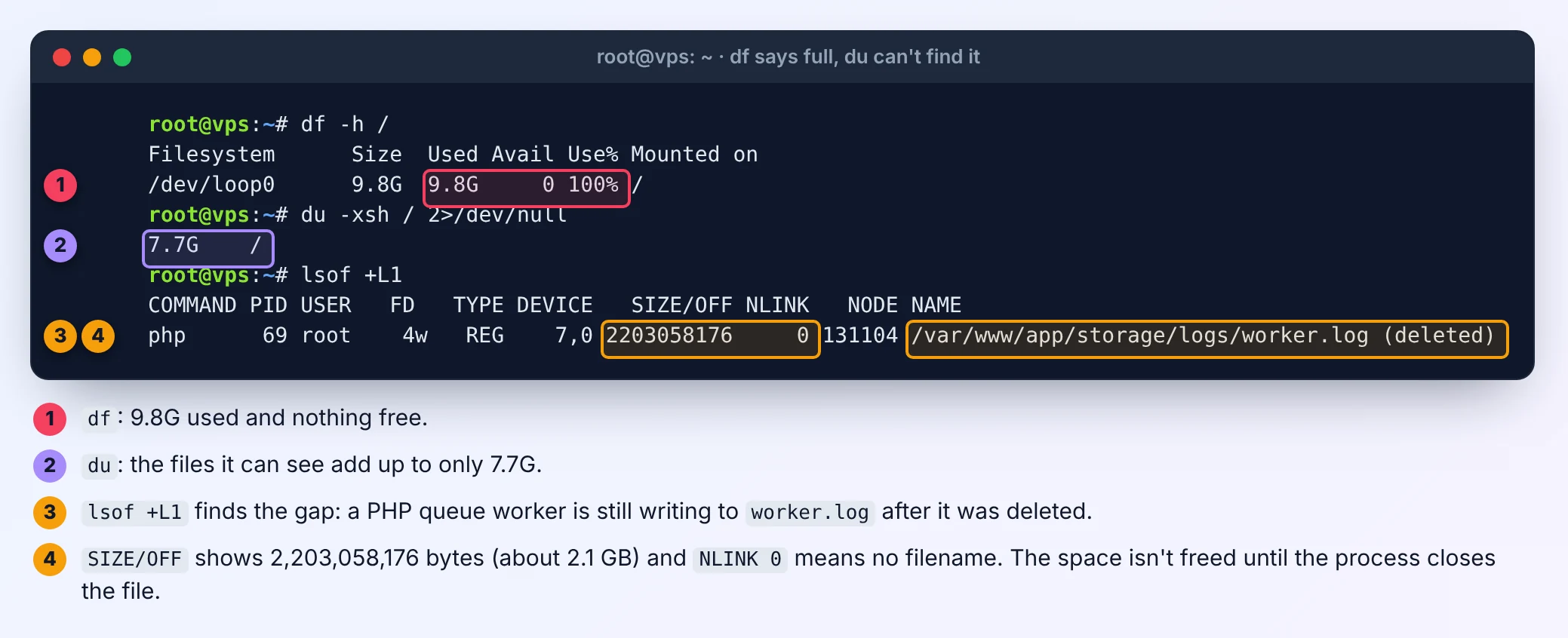
This lists open files with no remaining name on disk. Restart the service that owns them (for example sudo systemctl restart nginx) and the space comes back. Next time, empty an active log with truncate -s 0 instead of deleting it.
When you are out of inodes, not space
Find the directory with the most files:
sudo find / -xdev -type f | cut -d/ -f2-4 | sort | uniq -c | sort -n | tailThe usual causes are PHP session files in /var/lib/php/sessions that aren't being cleaned up, a cache directory written by an app (Laravel's storage/framework/cache, WordPress page-cache plugins), or a mail queue filled with failed messages. Delete the files the app no longer needs, then fix whatever stopped them being cleaned up.
Recovering services after you free space
Once there is room again, check what fell over:
systemctl --failed
sudo systemctl restart mysql   # or mariadb, php8.5-fpm, docker…
If apt was interrupted mid-upgrade, finish the job with sudo dpkg --configure -a and then sudo apt -f install.
Stop it happening again
- Docker log limits in
daemon.json, and a weeklydocker image prune -ffrom cron. - A journald size limit.
- Daily log files with a retention period for your apps.
- Backups shipped off the server, with only a few kept locally.
- A warning before you hit 100%. Even a one-line cron job that emails you when
dfpasses 85% beats finding out from a broken site.
Not sure how a disk size like "40 GB" compares with what df -h reports in GiB? Our Data Size Converter shows both. And if you are running out of space regularly, compare what a bigger disk costs in our 2027 VPS price comparison.
The commands here are standard on Ubuntu 24.04 and 26.04 with Docker Engine and systemd. I checked the Docker logging options and journald settings against their official documentation as of October 2026.

Comments 0
Be the first to comment.
Leave a comment