

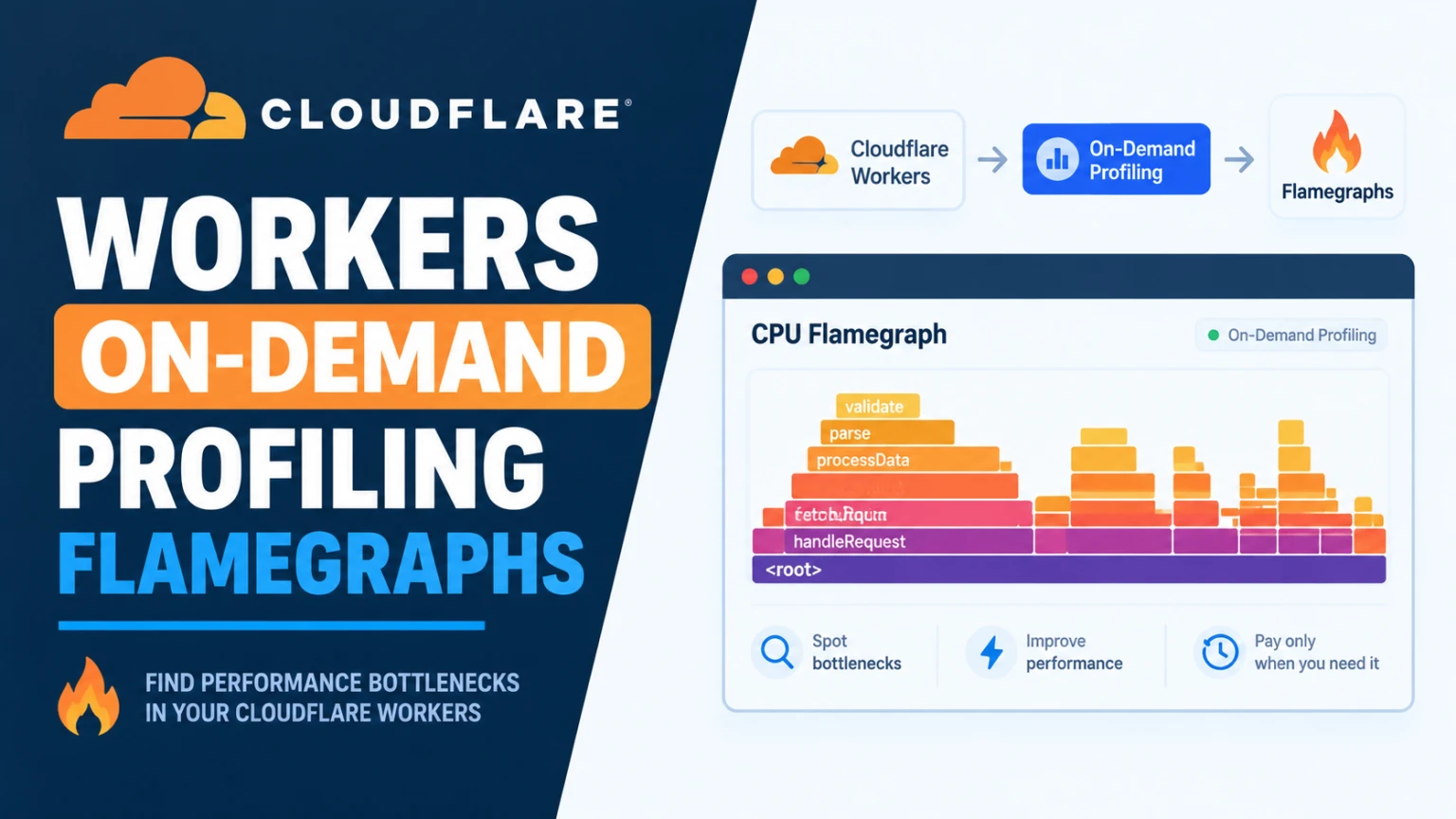
Cloudflare Workers are easy to deploy and hard to debug once real traffic hits them. Logs tell you something went wrong. Metrics tell you it got slow or ran out of memory. Neither tells you which line of code is to blame.
On October 9, 2026, Cloudflare announced a fix. You can now capture a CPU or memory profile from a Worker that is running in production, then read it as a flamegraph. This guide explains how it works, how to try it, and what Cloudflare found when it used the feature on its own code.
The quick answer
- What is new: on-demand CPU and memory profiling for Workers and Durable Objects, with an interactive flamegraph.
- Where to find it: Build, then Compute, then Workers & Pages. Open your Worker, go to Observability, and pick Flamegraph.
- CLI option: the new
cfcommand line tool can save a profile to a file. - The catch: your Worker needs real traffic, and you must start each session yourself.
- Not stated: the announcement does not say which plans include it or whether it costs extra. Check the docs before you plan around it.
Why profiling beats guessing
Profiling means watching a program while it runs and recording where it spends time or memory. Instead of guessing, you see the exact function that uses the most CPU, or allocates the most memory.
Cloudflare points out a real gap here. Workers could already be profiled on your own computer with Chrome DevTools. But a local test does not see the same requests, or the same volume, as production. A bug that only shows up under real load stays hidden. Production profiling closes that gap.
How to capture a profile
Option 1: the dashboard
1. Open the Cloudflare dashboard.
2. Go to Build, then Compute, then Workers & Pages.
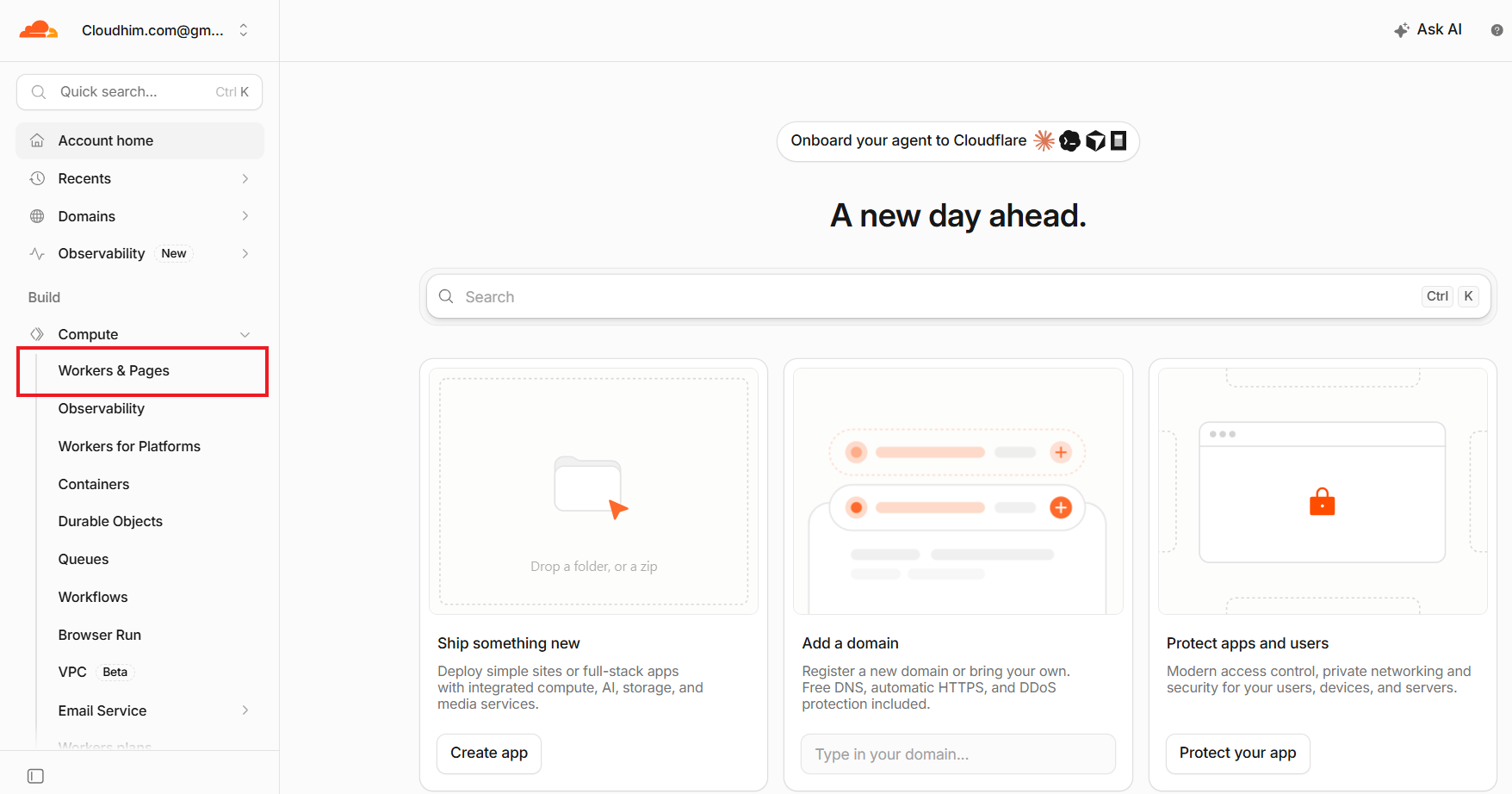
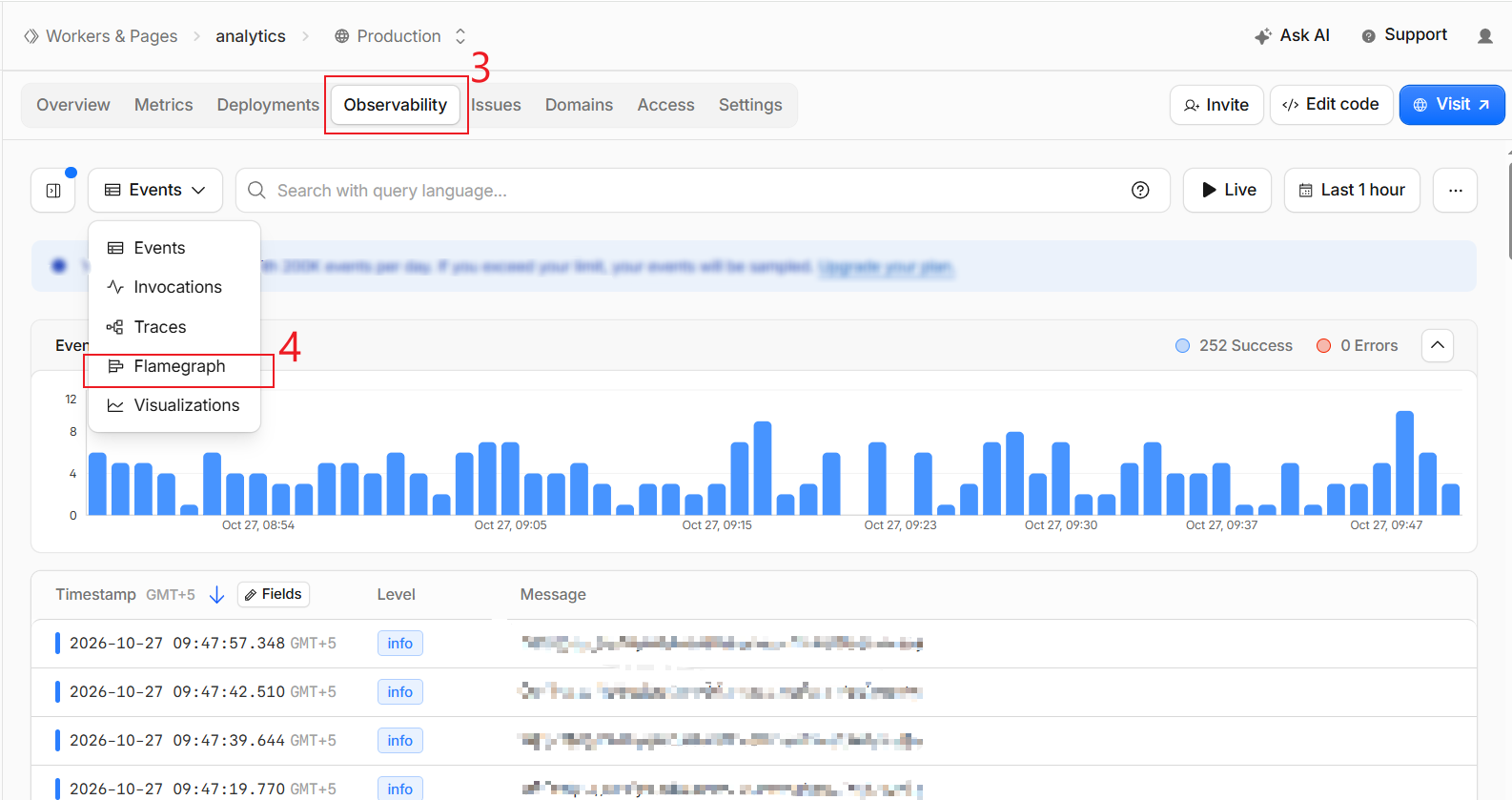
3. Select your Worker and open its Observability tab.
4. Use the drop-down to choose Flamegraph.
5. Pick CPU or memory, set a duration, and choose which version of the Worker to profile. Click Capture Profile.
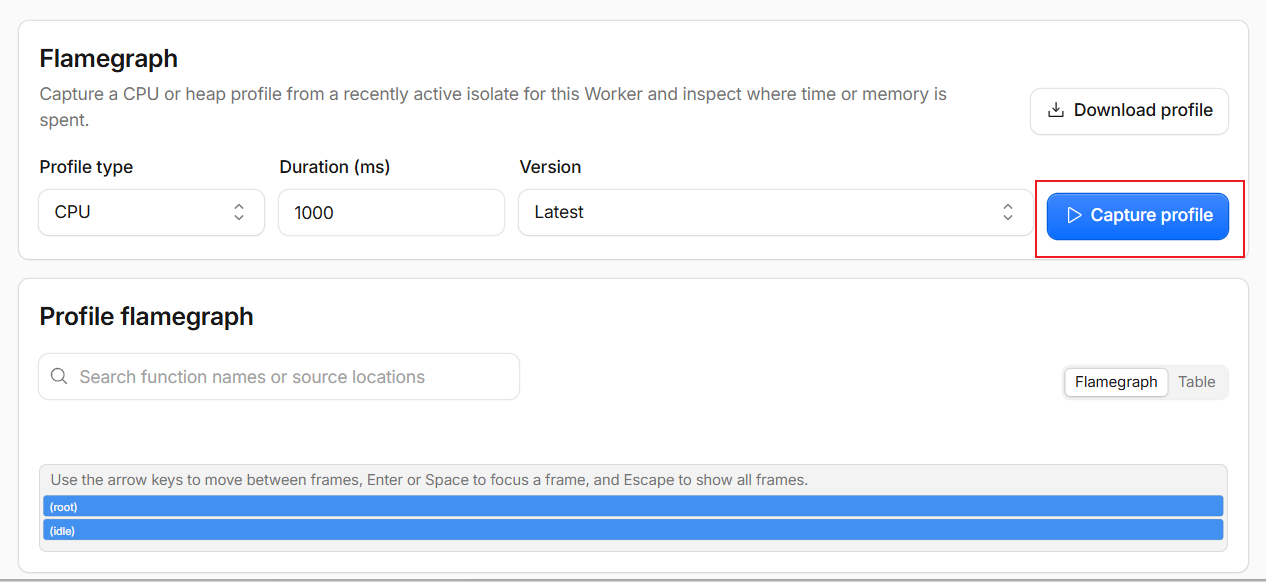
6. Pick a version that is actually deployed and getting traffic. Cloudflare says the Worker needs plenty of requests to be profiled well.

Option 2: the command line
First install the cf package. Then run this, with your own Worker name or ID:
cf workers versions profile latest \
  --worker-id "$WORKER_ID_OR_NAME" \
  --duration-ms 5000 \
  --profile-type cpu > worker-cpu.pprof
You get a .pprof file. Open it with a tool such as Go's pprof viewer if you want to explore it outside the dashboard:
go tool pprof -http=:8080 worker-cpu.pprofThe same profile is also available through the Cloudflare API, which is handy if you want a script, or a coding assistant, to request it for you.
How to read a flamegraph
A flamegraph looks busy at first. The rule is simple. Each box is one function call. The wider the box, the more CPU time or memory that function used. Boxes stacked on top were called by the box below.
How to read a flamegraph An illustration with three rows of boxes. The bottom row is one wide box called handleRequest. Above it are two boxes, parseBody and buildResponse. The wider box, buildResponse, sits on top of a still wider function, serialize, showing where most time is spent. This is an illustration, not real data. Reading a flamegraph (illustration, not real data) handleRequest (the whole request) parseBody buildResponse serialize (widest box = biggest cost) Start with the widest boxes near the top. That is where your time goes.
Cloudflare's advice is practical. Capture a couple of profiles, not just one. Then look for the widest functions. The table view is also useful. Sorting it by samples can surface functions that are too thin to notice in the graph.
If you write your Worker in TypeScript, turn on source maps. Without them, the profile can show scrambled function names that are hard to read.
What Cloudflare found in its own code
The announcement includes two real examples. I think these are the most useful part, because they show what a profile actually reveals.
Example 1: wasted CPU in the R2 Worker
Cloudflare profiled the Worker that powers the R2 binding. It gets a lot of traffic, so even tiny savings matter. The widest boxes were expected work, such as decrypting data and moving bytes.
The surprise showed up in the table view. A function called genericR2JsonReplacer took over 5% of CPU time, and it was calling itself again and again. The cause was a double walk. JSON.stringify already visits every node in the data. The replacer function was also walking the tree itself. So a value five levels deep got processed five times.
Removing the duplicate work made that function 2.7 times faster. A second find was smaller but still real. A heavy metrics call ran twice when once was enough. That one call took about 1% of CPU, so saving the result in a variable removed the waste.
Example 2: a memory problem nobody suspected
Another internal Worker kept hitting its limit. Its 99.9th percentile memory use sat near 133 MB, but Workers have a 128 MB limit. So the Worker was often evicted with an "Exceeded Memory" error. Metrics showed memory was the problem. They did not show why.
The team took a heap profile of the live Worker and opened it in pprof. About 66.7% of allocations came from Prometheus metrics code. That code was supposed to be switched off. In reality it was only partly off, and it still paid the memory cost. Because it wrapped many code paths, it used a lot of memory even though its data never left the Worker.
Removing it fixed the problem. Here are Cloudflare's numbers:
| Percentile | Before (MB) | After (MB) |
|---|---|---|
| P50 | 70 | 54 |
| P90 | 94 | 79 |
| P99 | 113 | 97 |
| P999 | 133 | 118 |
That left roughly 10 MB of headroom under the limit. The lesson is not about Prometheus. It is that code you believe is disabled can still be costing you. Only a profile shows that. If you want a feel for why a fixed memory ceiling matters so much, our guide to VPS out-of-memory problems covers the same idea on a server.
How it works behind the scenes
You can skip this section and still use the feature. But it explains the limits that follow.
Workers run in many data centers, and one Worker can run on many machines at once. So before profiling starts, Cloudflare has to answer a few questions. Which version should be profiled? Where has it run recently? Is the Worker still loaded there? Does that process belong only to your account? You answer some of these in your request. Cloudflare's systems answer the rest.
For a CPU profile, the runtime uses the V8 profiler, the engine that runs JavaScript in Chrome and Node.js. It samples once per millisecond. The key detail is that the runtime holds its lock only to start and stop the profiler. During the sampling window, your Worker keeps serving requests. Holding the lock the whole time would freeze your code and make the profile useless.
Durable Objects are special. A regular Worker is stateless, so Cloudflare picks any running copy. A Durable Object has a name, so you can profile one specific object anywhere in the world. The runtime routes your request to the machine that owns that object.
Limits you should know
- You start it by hand. You can miss the moment your Worker misbehaves.
- Memory profiles see only the window. Allocations made earlier, such as during start-up, will not appear.
- It needs traffic. A quiet Worker is hard to profile. Cloudflare also does not start a fresh process just to profile, because the goal is to observe real production work.
Cloudflare says it is already working on continuous profiling. That would collect samples automatically, so rare events are easier to catch. It is not available yet, so do not plan around it.
Should you use it?
It is worth trying when:
- A Worker is slower than it should be and logs show nothing.
- You see memory errors but cannot find the cause.
- You want proof of where CPU goes before you rewrite code.
You probably do not need it when:
- Your Worker is tiny, such as a simple redirect or a header tweak.
- It gets almost no traffic, so a profile would be thin.
- You have not checked the basics first, such as obvious slow network calls.
Many small sites use Workers lightly, for example with R2 media storage or edge rules. For those, this feature is nice to know about, not something to act on today. It matters most when a Worker becomes a real part of your app.
Frequently asked questions
Does profiling slow down my Worker? Cloudflare designed it so your Worker keeps running during the capture. The announcement does not give a performance overhead number, so test it on a Worker you can afford to experiment with first.
Can I profile a Durable Object? Yes. You choose the object by name, and the request is routed to the machine that owns it.
Where are the full instructions? Cloudflare's documentation page on profiling in production is the place to check current steps and any plan limits.
Can I automate it? Yes. The CLI and the API both accept the same options, such as duration and profile type.
Where can I follow updates? Cloudflare's official X account, @Cloudflare, and the post's author, Dominik Picheta, are good places to watch for news on continuous profiling.
My takeaway
The best part of this feature is not the flamegraph itself. It is that you can now measure production instead of arguing about it. Cloudflare's two examples show the pattern well. A function nobody suspected was wasting CPU. Code everyone thought was off was still eating memory. Both were invisible until someone looked.
If you already run Workers, capture one profile this week, even if nothing is wrong. Knowing what normal looks like makes the next real problem much faster to solve. And if you also protect your sites with Cloudflare, our guide to gating a staging site with Cloudflare Access is a good next read.
I checked the steps, numbers and limits in this guide against Cloudflare's announcement dated October 9, 2026. Cloudflare may change plans, steps and limits, so confirm them in the official documentation.


Comments 0
Be the first to comment.
Leave a comment