


There's a specific kind of panic reserved for this exact mistake: you SSH into a fresh VPS, decide to lock it down properly, run sudo ufw enable — and the connection just hangs. No error message, no warning, just a terminal that stops responding. You've enabled a firewall that, by default, denies everything, including the SSH connection you're currently using to manage it. If you haven't explicitly allowed SSH first, you've just locked yourself out of your own server.
This is one of the most common VPS mistakes there is, and it's been catching people out for well over a decade — but almost nothing written about it leads with prevention. Here's the one-line rule that prevents it, and the recovery path if it's already happened to you.
The rule: allow SSH before you enable the firewall, not after
UFW's default policy denies all incoming connections. That's the entire point of a firewall — but it means the moment you run ufw enable, every port is closed, including whichever one your current SSH session is using, unless you've explicitly told it not to. The fix is a strict ordering, not a complicated one:
sudo ufw allow OpenSSH
sudo ufw enable
allow before enable — always, no exceptions. If you've already followed our guide on disabling SSH password login and you're connecting on the default port 22, OpenSSH is a built-in UFW application profile that covers exactly that.
The gotcha if you've changed your SSH port
If you've moved SSH off port 22 — a common additional hardening step — the OpenSSH alias will not cover your actual port, and running it will give you false confidence right up until you enable the firewall and lose your connection anyway. Allow the specific port number instead:
sudo ufw allow 2222/tcpreplacing 2222 with whatever port you actually configured. Check your current SSH port first if you're not certain:
sudo grep -i "^Port" /etc/ssh/sshd_configIf that returns nothing, SSH is still on the default port 22, and the OpenSSH alias is fine to use.
Verify before you trust it — the same rule as everything else on a VPS
Never close your only working SSH session to test a firewall change. Open a second, separate terminal and connect fresh:
ssh username@your-server-ipIf the new connection succeeds, your rule is correct and it's safe to close your original session. If it hangs or is refused, you still have your original session open to fix it — that session is your safety net, and it's only useful if you haven't closed it yet.
Add your other essential ports at the same time
If you're running a web server, allow those ports before enabling too, so you don't lock yourself out of the website in the same move:
sudo ufw allow 80/tcp
sudo ufw allow 443/tcp
sudo ufw allow OpenSSH
sudo ufw enable
sudo ufw status verbose
The final status verbose command shows you exactly which rules are active — confirm SSH and your web ports are all listed as ALLOW before you consider the job done.
If you're already locked out right now
First, don't panic and don't destroy the server — you haven't lost your data, just remote access to it. Every major VPS provider (DigitalOcean, Hetzner, AWS, Linode, Vultr) provides a browser-based console in their dashboard that connects directly to the machine, completely bypassing SSH and the firewall rule that's blocking it — the same recovery path covered in our SSH guide works here too.
- Log into your VPS provider's dashboard and open the web-based console (sometimes called a "recovery console," "VNC console," or similar, depending on the provider).
- Log in locally through that console using your regular credentials.
- From there, either fix the rule properly:
sudo ufw allow OpenSSH sudo ufw reload - Or, if you just need access back immediately and want to redo the firewall setup properly afterward:
sudo ufw disable
Once you're back in over SSH normally, re-enable UFW following the correct order above — don't leave it disabled long-term just because it worked once.
A safer habit for next time: schedule an automatic rollback first
UFW has no built-in "revert if I don't confirm" timer, but you can create one with systemd before you enable the firewall. If the change locks you out, the timer turns UFW off again a few minutes later:
# 1. Schedule "ufw disable" to run in 5 minutes as a one-off systemd timer
sudo systemd-run --on-active=5min --unit=ufw-rollback /usr/sbin/ufw disable

# 2. Confirm the timer exists
systemctl list-timers ufw-rollback.timer

# 3. Enable the firewall
sudo ufw enable
Now open a second terminal and connect again. If the new SSH session works, cancel the rollback so UFW stays on:
sudo systemctl stop ufw-rollback.timerIf you can't get back in, wait for the timer to fire; UFW will be disabled and SSH will answer again. Fix the rule, then repeat the steps. The provider console described above remains your last resort.
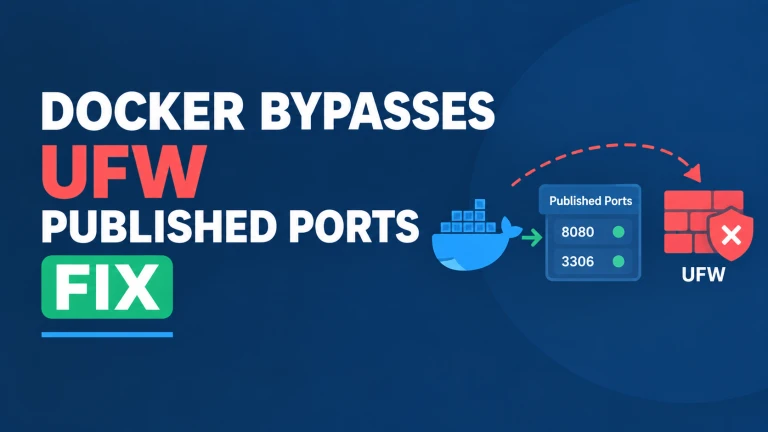
One more thing to check once the firewall is on: if the server runs Docker, ports published by containers are not filtered by UFW at all. See why Docker's published ports bypass UFW and how to check your server.
Commands in this guide reflect current UFW behavior on Ubuntu/Debian as of August 2026.
Free tool: our Subnet Calculator works out the address range, mask and host count for any IPv4 or IPv6 CIDR block. It runs free with no sign-up.
Update, 17 October 2026: replaced an incorrect section that implied UFW has a built-in timed rollback with a working systemd-based rollback timer, and added a note about Docker bypassing UFW.


Comments 0
Be the first to comment.
Leave a comment